Making Your Email Accessible
Does your email contain black and white text with no images or links? If so, then it is already accessible and there is nothing more to do. Outlook includes the option to Check Accessibility. From the new message, select the Review menu. Here you will find "Check Accessibility." To make emails accessible, please check for the following:
Do Not
- Do not scan a flyer and attach it to an email without adding alternate text to the graphic image and making sure all verbiage in the graphic is duplicated and available in text format within the body of the email.
- Do not add a link to a video that is not able to display captions.
- Do not attach or add a link to a PDF or other document that does not pass an accessibility scan.
Check Your Email Before You Send
Follows these instructions and/or watch the How to Scan Email instructional video:
- Open the Portal
- Click Office 365 icon in the header
- Click Outlook
- Click New Message to compose an email or forward an existing one
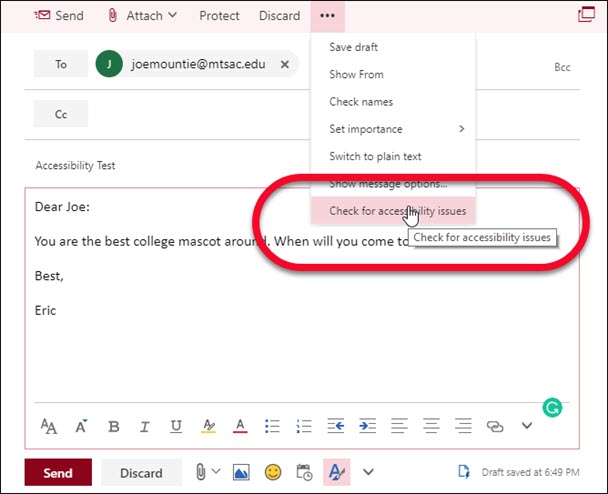
- Click Check for Accessibility Issues from the … menu
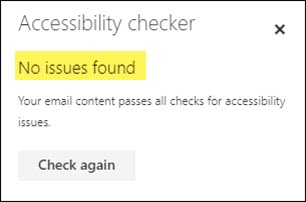
- Fix issues until No Issues Found